> ## Documentation Index
> Fetch the complete documentation index at: https://docs.assentir.com/llms.txt
> Use this file to discover all available pages before exploring further.
# Configure Brands
> Assentir CRM provides flexibility for managing multiple brands within a single platform, making it easier to handle subsidiaries, divisions, or different product lines. By creating and customising brands, you can ensure that documents, communications, and activities are aligned with your specific business needs.
## Setting Up and Customising Brands
With Assentir CRM, you can tailor your branding for various contexts:
* **Flexibility**: Create and manage different brands for various documents, departments, or subsidiaries, ensuring each area of your business maintains its unique identity.
* **Default Brand**: A pre-configured default brand is included with your CRM, which you can customise to align with your organisation’s branding.
* The default brand is automatically selected when creating new documents, simplifying the process and ensuring brand consistency.
* To set or change the default brand, select the This is the company default brand? option when creating or editing a brand.
### Creating or Editing a Brand
Follow these steps to create or edit a brand in Assentir CRM:
Navigate to **Settings** > **Brands** as an admin user.
Click **Create Brand** to add a new brand for your organisation.
To modify an existing brand, select the brand name from the list.
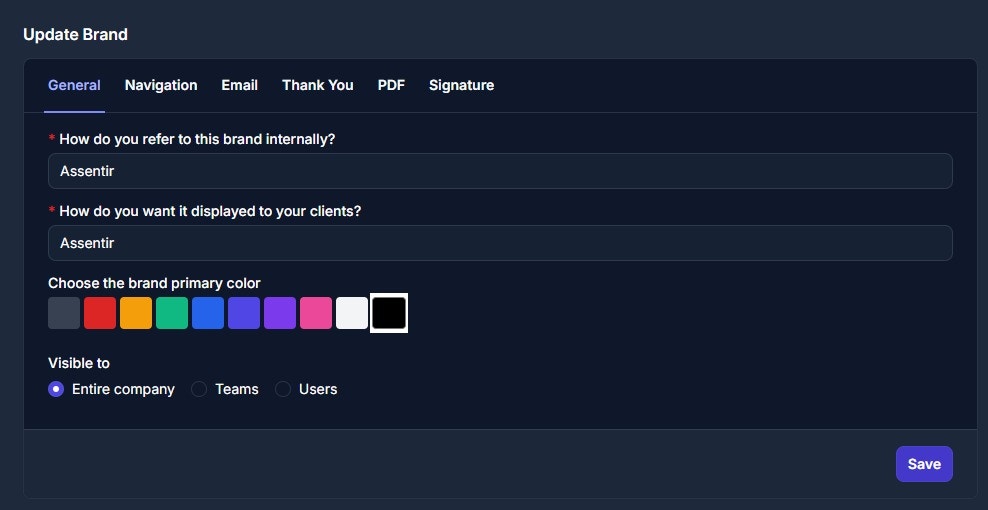
Customise the brand to reflect your company's identity, including brand name, logo, and colour schemes.
Once you've made your adjustments, click Save to apply them. When creating or editing documents, you can choose your preferred brand from a dropdown menu.
 ### Brand Visibility
Control how brands are shared and used within your organisation:
* **Default Visibility**: Newly created brands are visible to all users by default
* **Customised Access**: You can limit visibility and access to specific brands based on teams or users.
This feature is particularly useful when different business units require separate branding for their documents and communications
For example, restricting access ensures that only authorised teams can use a specific brand when creating documents, such as a brand used exclusively by a subsidiary.
By customising your brand settings, you can maintain a consistent, professional appearance across all communications while still allowing flexibility for various business areas.
### Brand Visibility
Control how brands are shared and used within your organisation:
* **Default Visibility**: Newly created brands are visible to all users by default
* **Customised Access**: You can limit visibility and access to specific brands based on teams or users.
This feature is particularly useful when different business units require separate branding for their documents and communications
For example, restricting access ensures that only authorised teams can use a specific brand when creating documents, such as a brand used exclusively by a subsidiary.
By customising your brand settings, you can maintain a consistent, professional appearance across all communications while still allowing flexibility for various business areas.