> ## Documentation Index
> Fetch the complete documentation index at: https://docs.assentir.com/llms.txt
> Use this file to discover all available pages before exploring further.
# Twilio Setup
> Step-by-step guide to integrate Twilio with Assentir CRM for sending SMS and making calls.
## Configure Twilio
Integrating Twilio with Assentir allows you to make calls directly from the platform and also receive incoming calls on a Twilio phone number.
This guide will walk you through the process of setting up the Twilio integration to streamline your communication.
## Prerequisites
Before starting the integration, ensure that you have the following:
1. A **Twilio** account. If you don’t have one, sign up at [Twilio](https://www.twilio.com/).
2. [Purchase](https://www.twilio.com/) a Twilio number with voice capabilities enabled in order to start making calls.
## Step-by-Step Setup
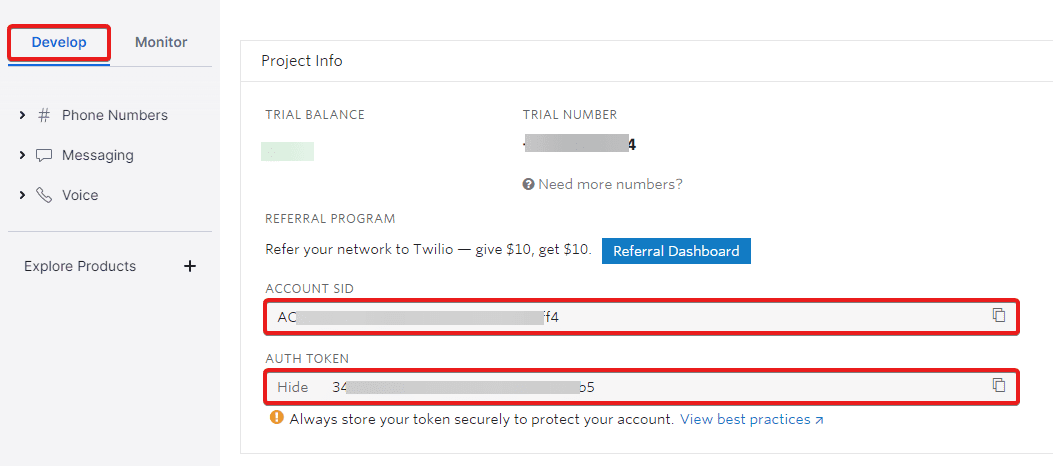
### Step 1: Retrieve Twilio Credentials
1. Log in to your Twilio account.
2. Go to the **Console Dashboard**.
3. Copy the Account SID and Auth Token and. You will need these to connect Twilio to Assentir CRM.
 ### Step 2: Access Twilio Integration in Assentir CRM
1. Log in to **Assentir CRM**.
2. Go to **Settings** and select **Integrations**.
3. Find **Twilio** in the list of available integrations and click on it.
* After you add the credentials, click Retrieve Numbers
* Select the number you want to receive and make calls.
* After you select number, click Create Application.
4. Click Save
You should make sure that you will use the phone number you selected in Assentir CRM only,
if you use the phone number in other applications, your other applications won't work as in this case, Assentir CRM created application will use the phone for calls.
### Step 3: Enter Twilio Credentials
1. In the Twilio integration settings, enter the following details:
* **Account SID**: Paste your Twilio Account SID.
* **Auth Token**: Paste your Twilio Auth Token.
* **Twilio Phone Number**: Enter the Twilio phone number you wish to use for sending SMS and making calls.
2. Click **Save** to store your settings.
### Step 4: Test the Integration
1. To ensure the integration is working, send a test SMS message or make a test call from Assentir CRM.
2. Go to the **Contacts** section, select a contact, and try sending an SMS.
3. Check if the SMS is successfully sent.
## Managing Twilio Integration
### Editing the Twilio Integration
If you need to update your Twilio credentials or phone number:
1. Go to **Settings** > **Integrations** > **Twilio**.
2. Update the **Account SID**, **Auth Token**, or **Phone Number** as necessary.
3. Click **Save**.
### Disconnecting the Twilio Integration
To disconnect Twilio from Assentir CRM:
1. Go to **Settings** > **Integrations** > **Twilio**.
2. Click **Disconnect** to remove the integration.
## Debugging Twilio
If for some reason you have error, you can take additional steps to debug why the integration is not working using Twilio debugging tools.
* In your Twilio account, via the top search bar, search for "Debugger"
* Click on the Debugger link from the result.
* If there are errors logged, you will be able to see list of the errors.
* Click on the last few errors so you can inspect them, in most cases, there will be an explanation why the error occurred.
## FAQs
**Q1: How do I get a Twilio phone number?**\
Log in to your Twilio account, navigate to the **Phone Numbers** section, and purchase a new phone number that supports calls.
**Q2: Can I use multiple Twilio phone numbers?**\
You attempted to initiate an outbound phone call from a trial account, but the 'To' number you specified is not a verified number for your account.
In order to make calls during a free trial, you must first verify your ownership of the phone number being called.
You can verify phone numbers from the phone numbers section of your account Twilio portal.
**Q3: You are trying to test the integration with Twilio trial account and your 'To' number is not verified.**\
You attempted to initiate an outbound phone call from a trial account, but the 'To' number you specified is not a verified number for your account.
In order to make calls during a free trial, you must first verify your ownership of the phone number being called.
You can verify phone numbers from the phone numbers section of your account Twilio portal.
**Q4: You get "Geo Permission configuration is not permitting call"?**
You attempted to initiate an outbound phone call to a phone number that is not enabled on your account. Please check your Voice Dialing Geographic Permissions, fix it, and try again.
### Step 2: Access Twilio Integration in Assentir CRM
1. Log in to **Assentir CRM**.
2. Go to **Settings** and select **Integrations**.
3. Find **Twilio** in the list of available integrations and click on it.
* After you add the credentials, click Retrieve Numbers
* Select the number you want to receive and make calls.
* After you select number, click Create Application.
4. Click Save
You should make sure that you will use the phone number you selected in Assentir CRM only,
if you use the phone number in other applications, your other applications won't work as in this case, Assentir CRM created application will use the phone for calls.
### Step 3: Enter Twilio Credentials
1. In the Twilio integration settings, enter the following details:
* **Account SID**: Paste your Twilio Account SID.
* **Auth Token**: Paste your Twilio Auth Token.
* **Twilio Phone Number**: Enter the Twilio phone number you wish to use for sending SMS and making calls.
2. Click **Save** to store your settings.
### Step 4: Test the Integration
1. To ensure the integration is working, send a test SMS message or make a test call from Assentir CRM.
2. Go to the **Contacts** section, select a contact, and try sending an SMS.
3. Check if the SMS is successfully sent.
## Managing Twilio Integration
### Editing the Twilio Integration
If you need to update your Twilio credentials or phone number:
1. Go to **Settings** > **Integrations** > **Twilio**.
2. Update the **Account SID**, **Auth Token**, or **Phone Number** as necessary.
3. Click **Save**.
### Disconnecting the Twilio Integration
To disconnect Twilio from Assentir CRM:
1. Go to **Settings** > **Integrations** > **Twilio**.
2. Click **Disconnect** to remove the integration.
## Debugging Twilio
If for some reason you have error, you can take additional steps to debug why the integration is not working using Twilio debugging tools.
* In your Twilio account, via the top search bar, search for "Debugger"
* Click on the Debugger link from the result.
* If there are errors logged, you will be able to see list of the errors.
* Click on the last few errors so you can inspect them, in most cases, there will be an explanation why the error occurred.
## FAQs
**Q1: How do I get a Twilio phone number?**\
Log in to your Twilio account, navigate to the **Phone Numbers** section, and purchase a new phone number that supports calls.
**Q2: Can I use multiple Twilio phone numbers?**\
You attempted to initiate an outbound phone call from a trial account, but the 'To' number you specified is not a verified number for your account.
In order to make calls during a free trial, you must first verify your ownership of the phone number being called.
You can verify phone numbers from the phone numbers section of your account Twilio portal.
**Q3: You are trying to test the integration with Twilio trial account and your 'To' number is not verified.**\
You attempted to initiate an outbound phone call from a trial account, but the 'To' number you specified is not a verified number for your account.
In order to make calls during a free trial, you must first verify your ownership of the phone number being called.
You can verify phone numbers from the phone numbers section of your account Twilio portal.
**Q4: You get "Geo Permission configuration is not permitting call"?**
You attempted to initiate an outbound phone call to a phone number that is not enabled on your account. Please check your Voice Dialing Geographic Permissions, fix it, and try again.